Mosque timetable helper
Sajda cannot search mosques for you (that would break the timetable provider terms). This page helps you do it yourself in 2 minutes - everything runs in your browser. No API calls, no scraping, no data leaves your Mac. You visit the provider site, you download your file, you import it into Sajda.
- Find your mosque page (step 1 below).
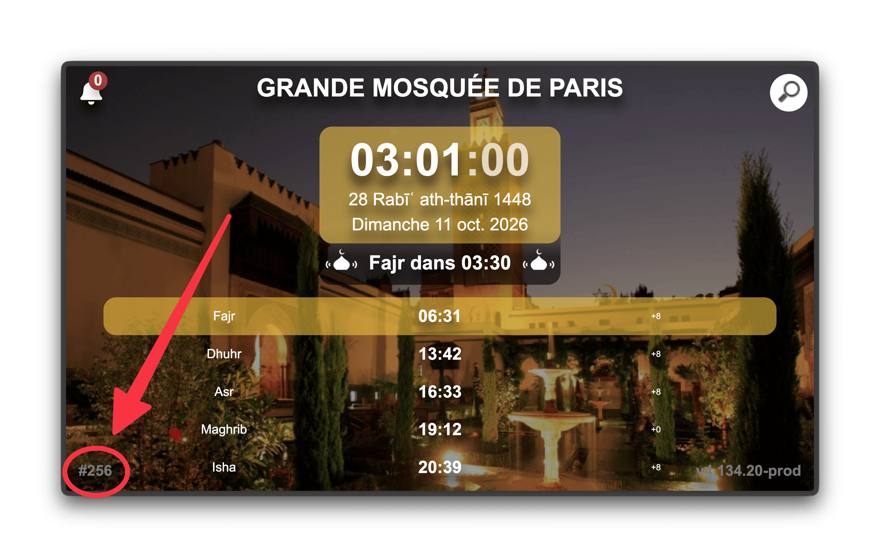
- Read the mosque ID off that page - bottom-left corner (see the picture in step 2).
- Open the calendar download link (step 3 builds it from the ID), download the annual PDF (easiest - one file, includes adhan, iqama and Jumuah) or the ZIP/CSVs (adhan times only - the source files contain no iqama or Jumuah).
- In Sajda: Settings > Mosque Timetable > Import timetable, pick the file, then rename it with the pencil button.
1 - Find your mosque
Type your mosque or city, then open the search. It goes to DuckDuckGo public results (limited to the provider site) in a new tab - open your mosque page there.
Opens DuckDuckGo results in a new tab.
2 - Find the mosque ID on the page
Mosque addresses are usually name-based (e.g. .../grande-mosquee-de-paris) with no ID inside - the ID is printed on the page itself, bottom-left corner:
3 - Open the calendar download page
The calendar lives at .../calendar/ID/choice. Enter the ID and open it - then download the file yourself.
Custom .../m/... addresses have no numeric ID - on those pages just use the site own download button instead of this trick.
For the full timetable (adhan + iqama + Jumuah), grab the annual PDF - the monthly CSVs only carry adhan times.
Why this way?
Looking timetables up from inside the app would use the provider service against their terms, so Sajda reads only files you hand it (Settings > Mosque Timetable, stored locally, fully offline). This helper is the middle ground: it never contacts the provider - you do, in your own browser, exactly as if you bookmarked the page.